We’re here if you have any questions
Contact Us.png)
Using Project Boards on Venzer is a great way to organize and save ideas, inspirations, and content for your projects.
Create Boards
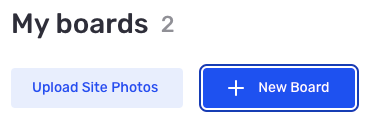
To start using boards, you need to create them. On the Venzer website go to your profile and click on the "Boards" tab.
Then, click on the "New Board" button and give your board a name and description. You can also choose whether your board is public or private.
Organize Your Boards
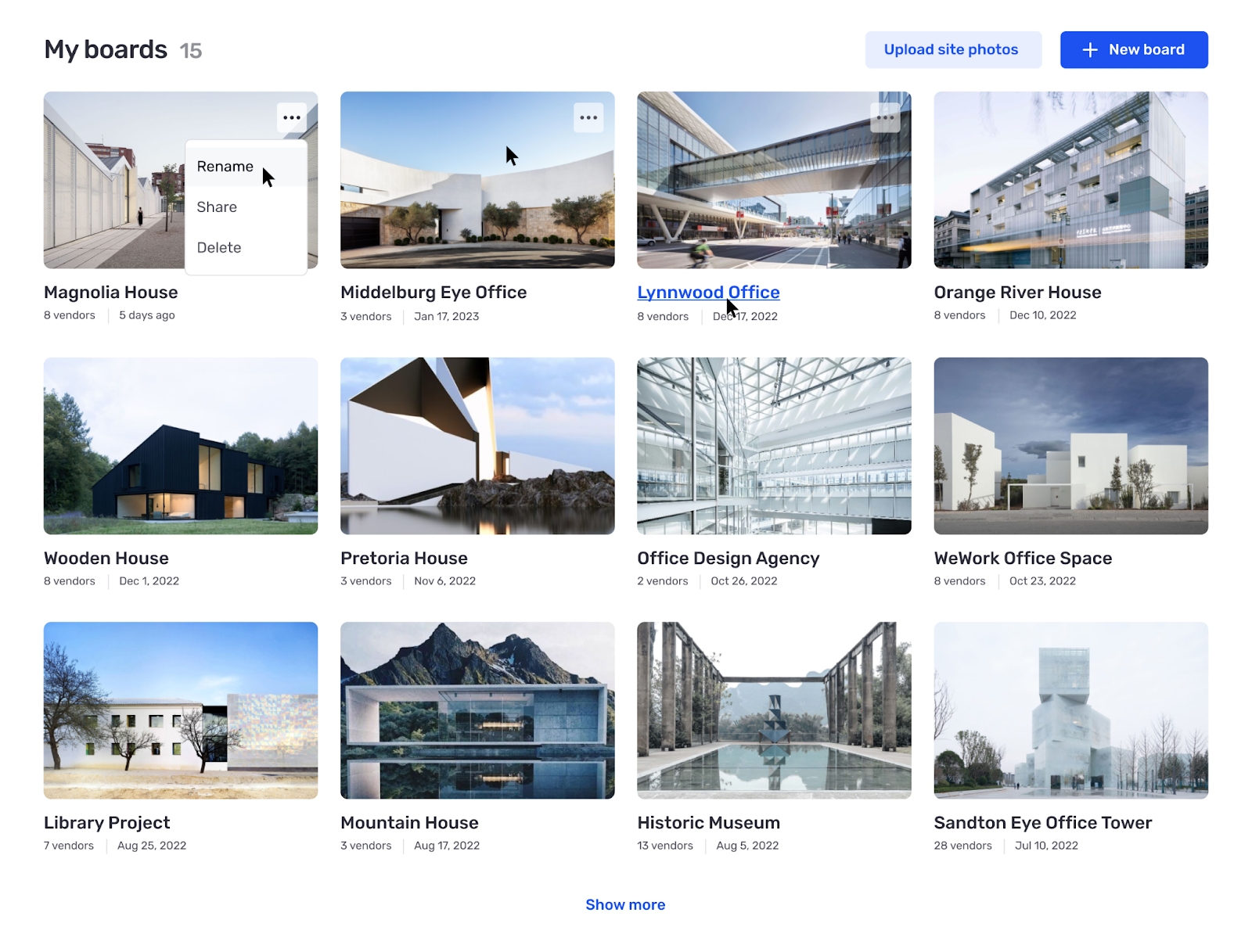
Organize your boards based on different projects. For example: If you are an architect, you may be working on three projects simultaneously. Take the time to organize each project board and save different vendors per project. This allows you to keep track of relevant vendors for your project.
Upload Site Photos
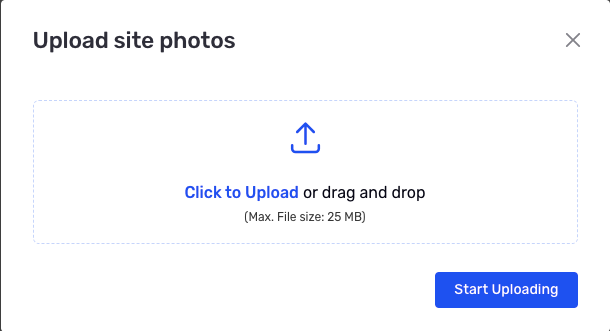
Site photos are photos of your current renovation project. For example: if you are renovating your kitchen, you can upload photos of the current state of your kitchen and then share them with the vendor you selected. Select a project board and then click on the "Upload Site Photos" button on your top right hand side. Drag and drop your site photos and wait for the upload to complete.
Save Vendors

Click the heart icon to save a vendor to your Project Board. You can save as many vendors as you’d like.
Share Your Project Board
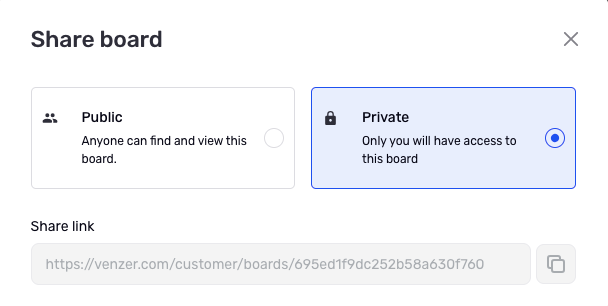
In your board, click the "Share" button, on the top right hand side of the page.
Copy the unique link of your board and send it directly to the vendor via email. This will allow the vendor to view your board and avoid miscommunication about your project.

.png)

.png)